What is Imagine Image AI?
Imagine Image AI is an image generation and editing platform for real creative work. Create from text and references, change specific details, preserve what matters, and continue from every result.
Precise image generation and editing
Imagine Image AI helps you create from text and references, change exactly what you want, preserve what already works, and keep building from every result.
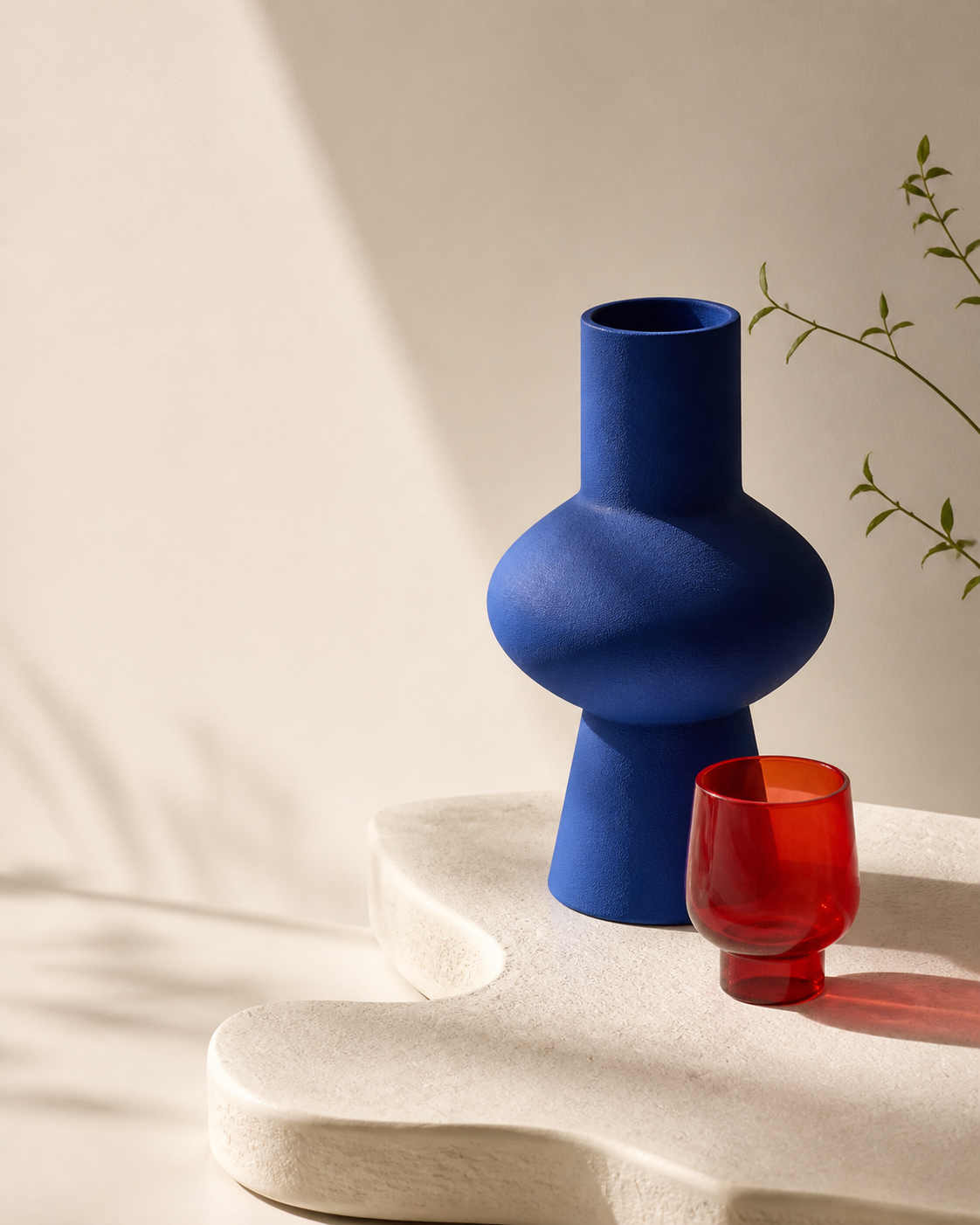
 Your visual starting point will appear here.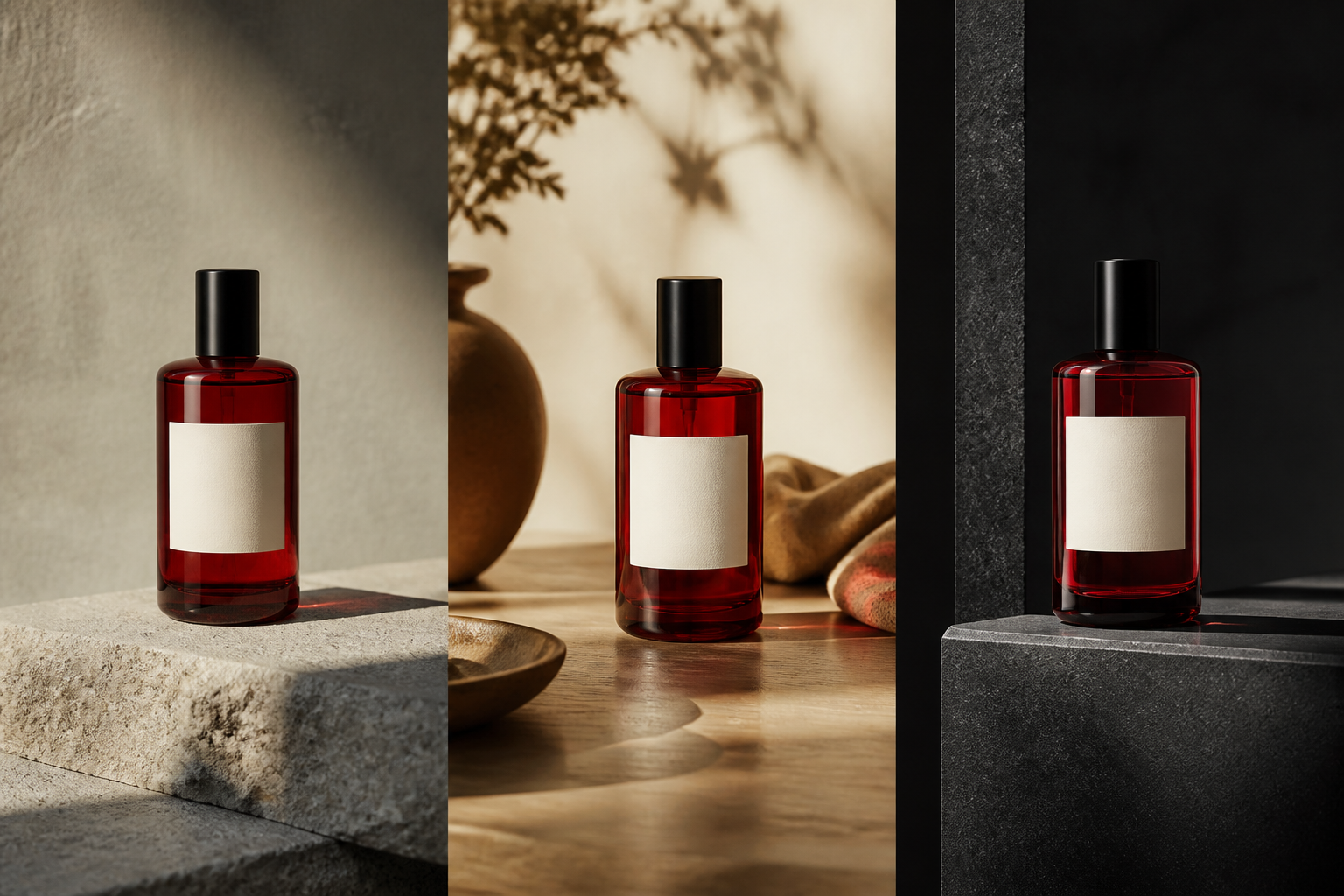
The result keeps moving
Generate a useful starting point, then keep the decisions that work as the image becomes a campaign, a format, a variation, or the next reference.
01 · Generate precisely
Imagine Image is made for prompts with intent. Describe the subject, composition, typography, lighting, materials, style, and spatial relationships that make the image yours. The details are not decoration around the prompt; they are the brief.
From a precise product scene to an editorial poster, start with the visual decision you need to make and give the generator enough context to follow it.
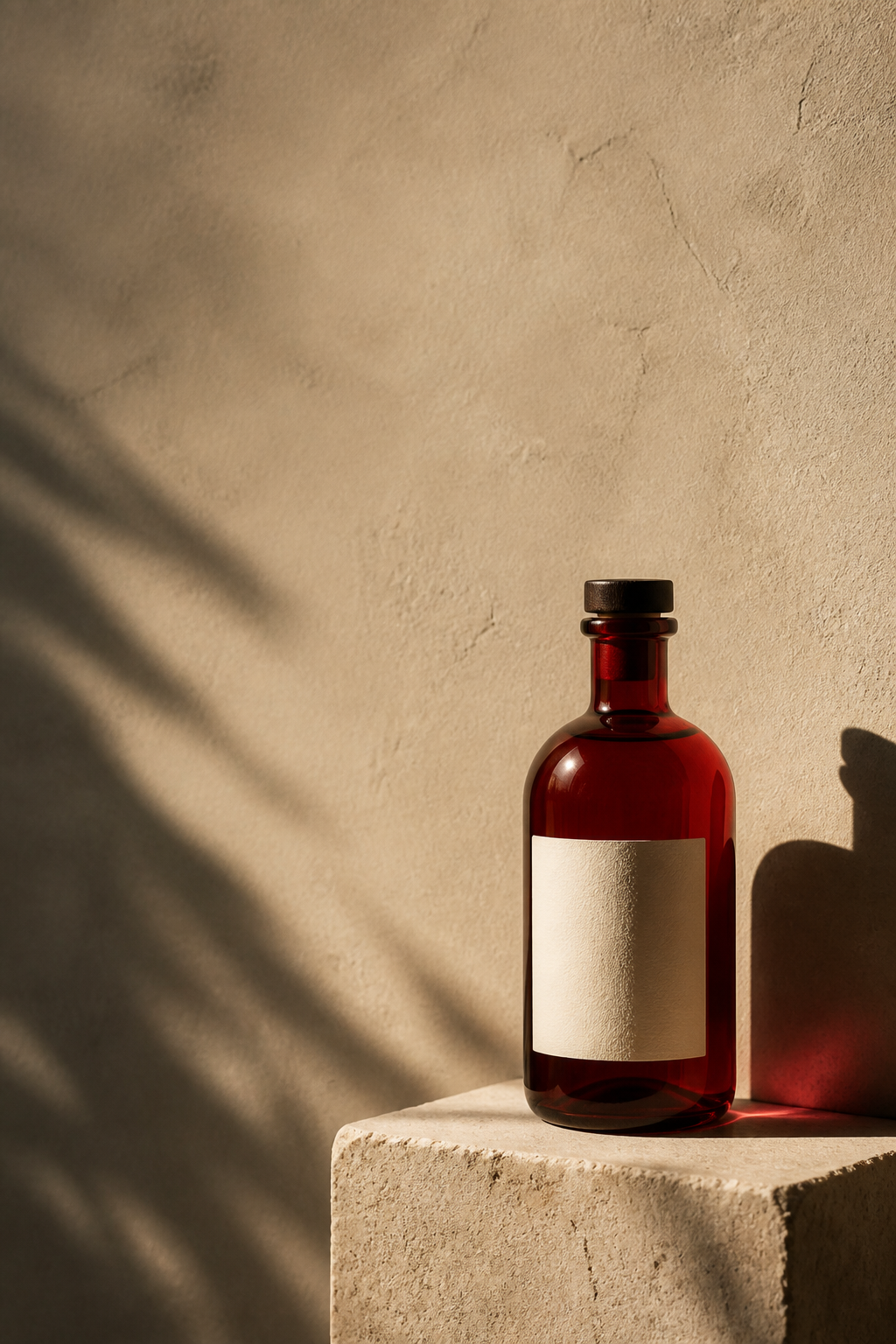
Try a prompt like this
Editorial product poster for a red glass bottle on a stone pedestal at dusk, restrained red-and-slate palette, sharp typography, and the headline “FUTURE DRIVE” above the composition.
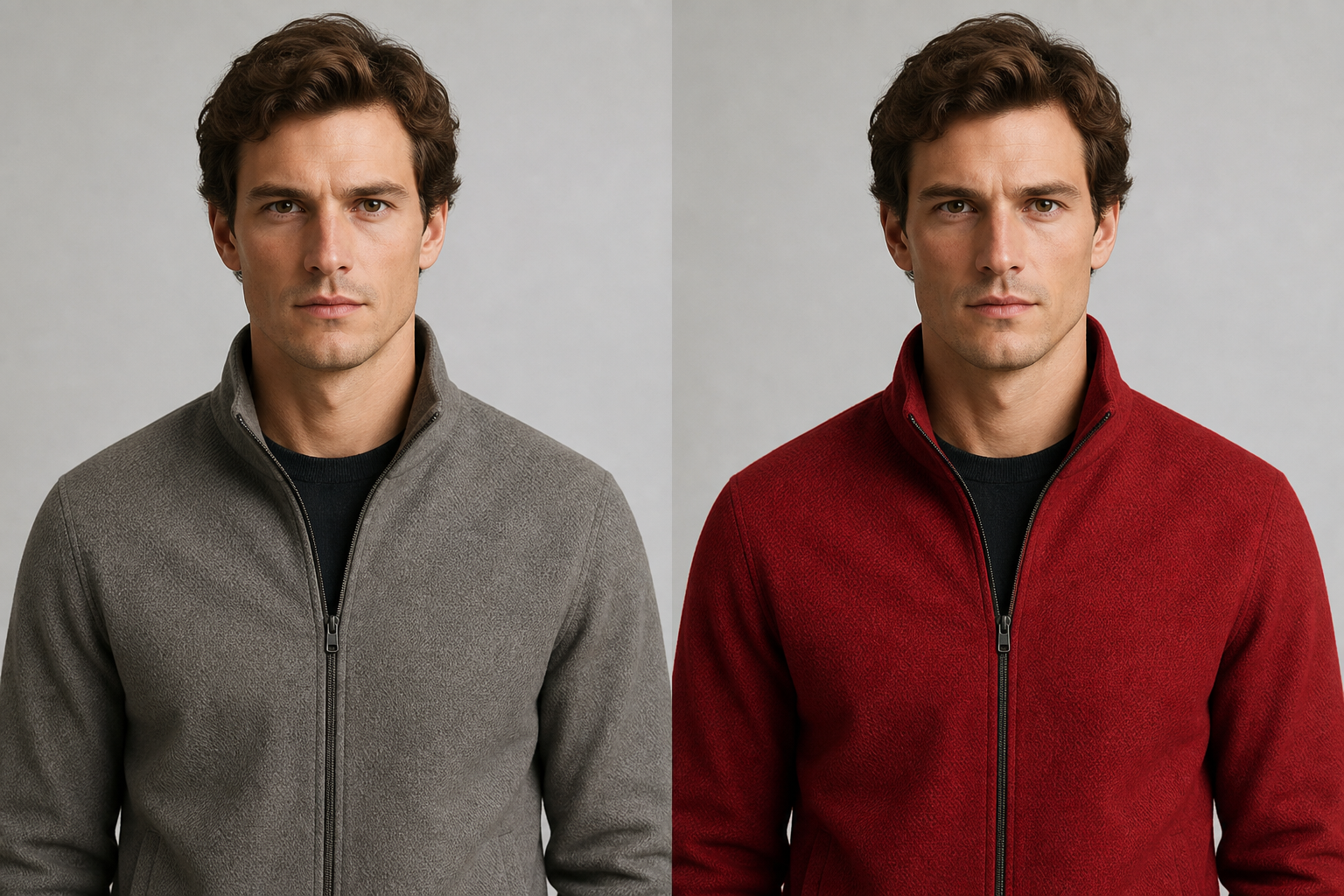
02 · Edit precisely
Creative work rarely ends at the first generation. When one part is wrong, you should not have to lose the parts that are already right. Tell Imagine Image what to change in natural language and keep the visual context around it.
03 · Select and edit
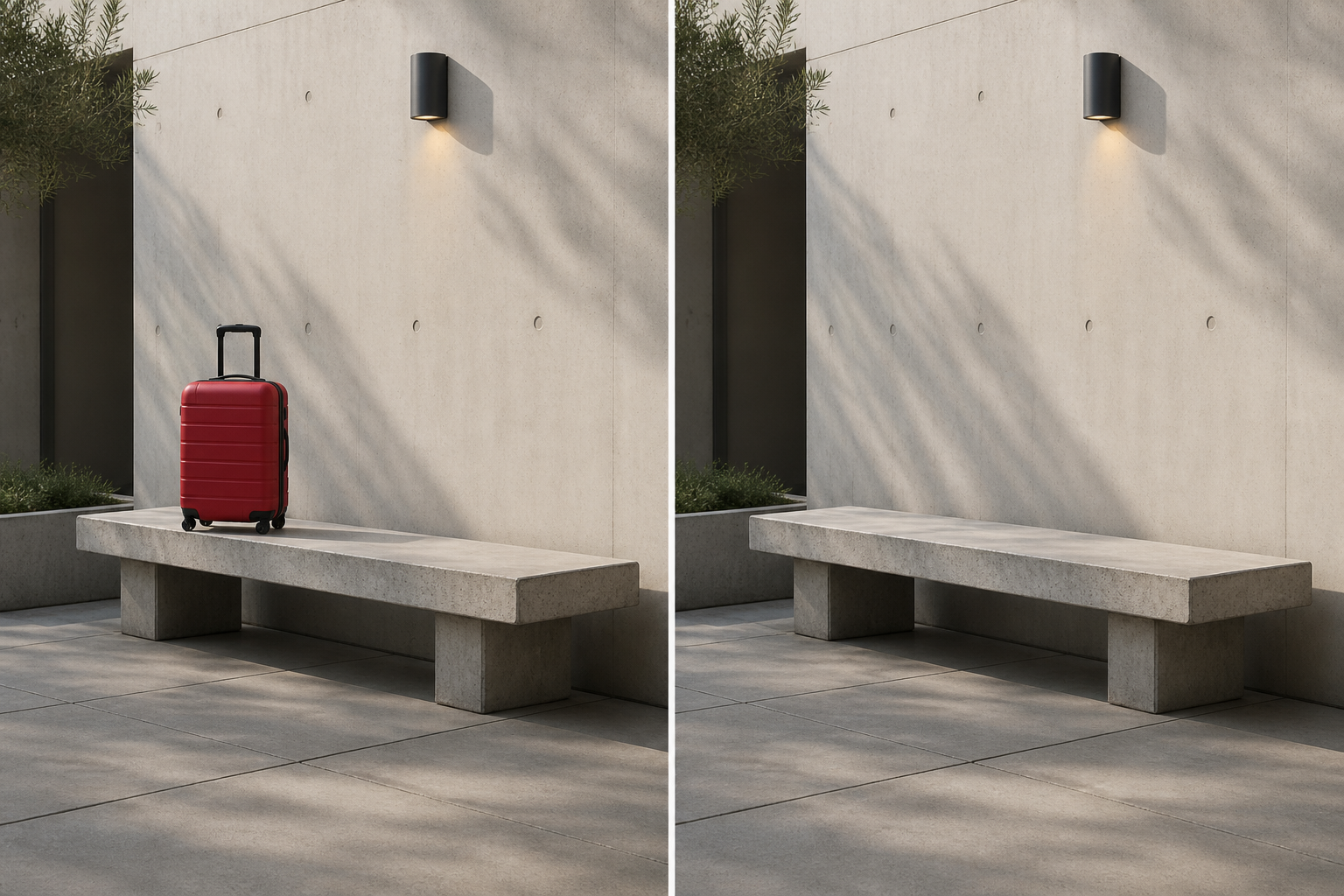
Point to the thing you mean, then describe the result you want. Smart selection makes people, faces, clothing, products, text, foreground objects, and backgrounds easier to target without making you learn masks or layers first.
01
ReplaceSwap an object while the surrounding scene stays coherent.02
RemoveErase an unwanted element and rebuild the space around it.03
RestyleChange the material, texture, color, or visual treatment.04
AdjustModify expression, lighting, shape, pose, or other attributes.04 · Create from references
Combine visual ideas without asking one reference to do every job. Give one image the character, another the outfit, another the product, and another the atmosphere. Imagine Image uses the instruction to bring those contributions into one new creation.
Move from text-to-image to text plus images, or from an existing image to a deliberate new direction.
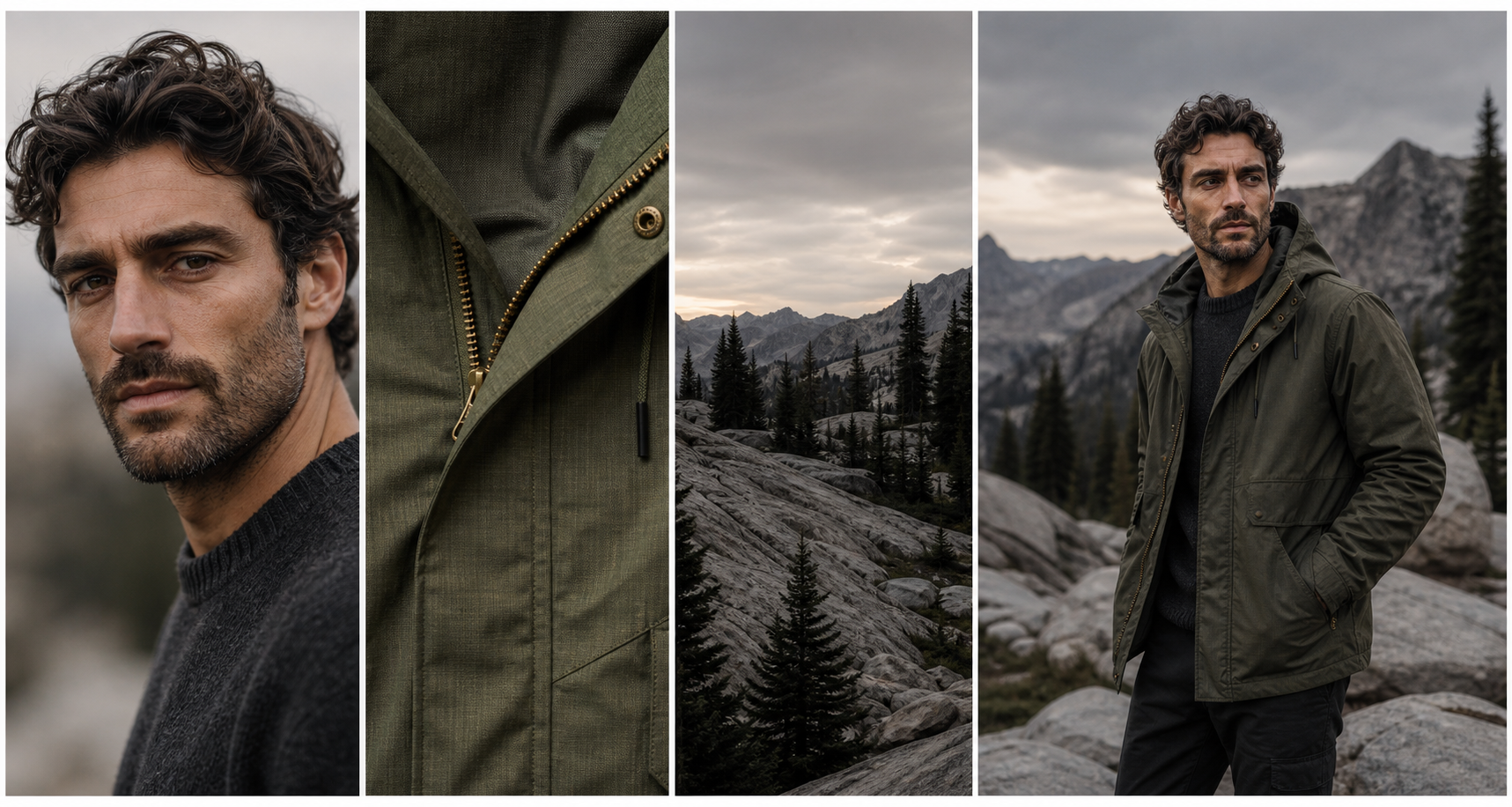
“Place this product in the second scene, using the lighting from the fourth image.”
AI recomposition · DEMO / STATIC
1:1 · Post
4:5 · Feed
9:16 · Story
05 · Adapt the result
Smart Resize treats a new aspect ratio as a composition problem, not a crop. Extend the scene, preserve the important subject, and adapt the frame for Stories, social posts, banners, thumbnails, or campaign layouts.
One creative asset can become many deliverables without losing the idea that made it work.
06 · Keep what matters
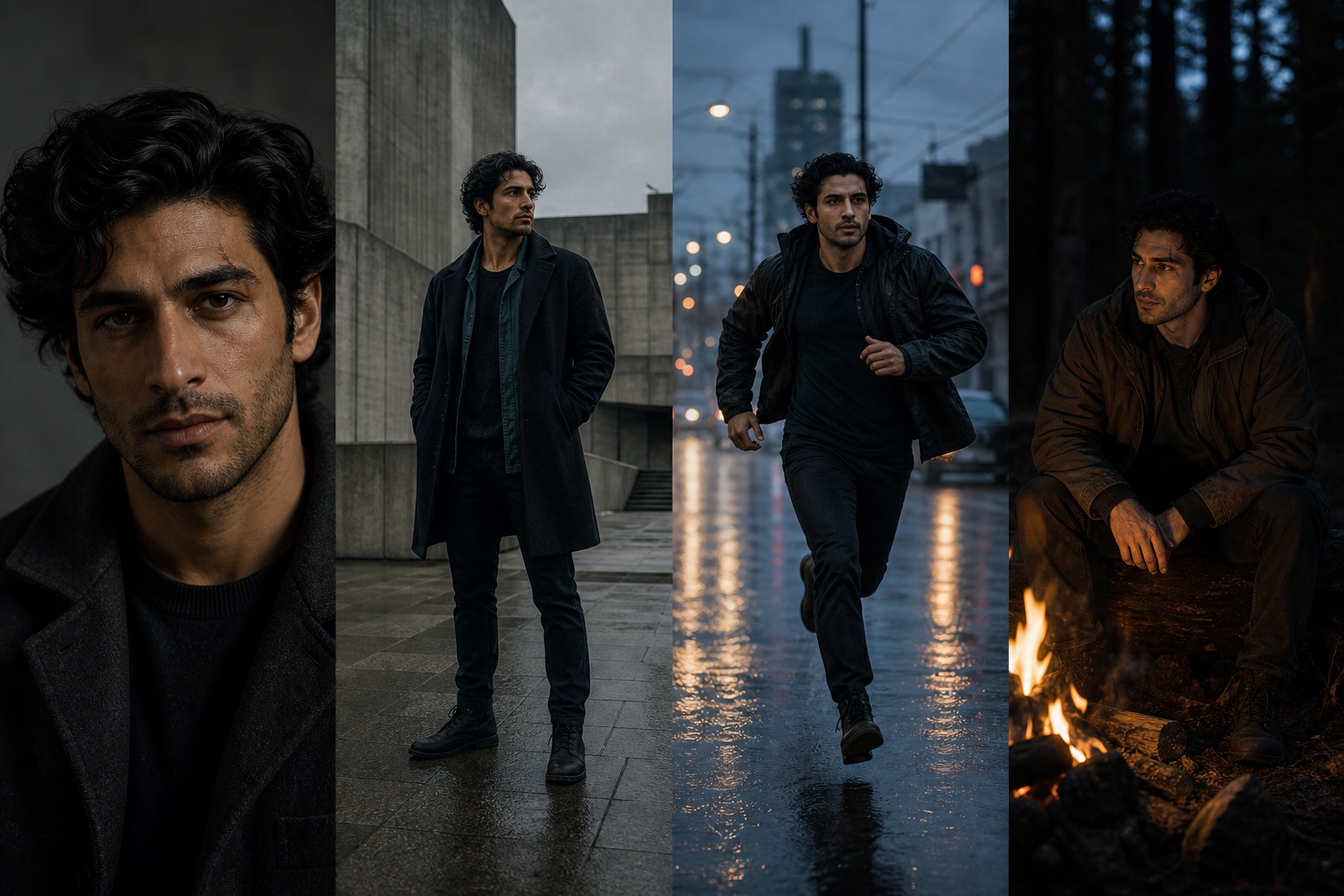
Keep the recognizable traits, product details, visual identity, and design decisions that make a series belong together. Consistency turns one good image into a world you can keep extending.
07 · Start with a task
Creative Templates turn model capabilities into ready-made workflows. Start from the outcome, not from a list of settings or a question about which model to use.
Browse creative workflows →Continuous creation
The first image is only the beginning. Edit a detail, select an object, create a variation, remove the background, resize the composition, or use the result as a reference for the next idea.
Use Imagine Image AI when the image has a job to do: explain a concept, sell a product, shape a campaign, build a character, or give a team something concrete to react to.
Move from a rough visual idea to a set of directions you can review, edit, and adapt.
Create a campaign visual, keep the product consistent, and deliver the right formats.
Develop characters, scenes, thumbnails, and social assets without losing the thread.
Make visual decisions visible earlier, before time is spent polishing the wrong direction.
Explore
Browse AI images by prompt, category, and use case. When a visual catches your attention, understand how it was made and take the next action: create something like it, use it as a reference, or start your own variation.
Explore AI images →A single creative loop for making, changing, and reusing visual ideas.
01
Start from a prompt, image, or set of references.
02
Generate a visual with the details and relationships that matter.
03
Select the part that works and the part that needs to change.
04
Edit, vary, restyle, and preserve the visual identity.
05
Resize, remove the background, reference, and deliver.
Creative starting points
Choose a concrete visual brief, then carry its prompt, composition, or style into your own creation.
Product
Warm daylight. Clear space. A useful asset.
Make the product the point →
Editorial
A silver jacket, red car, brutalist dusk.
Give the frame a story →
Character
Same face. New pose. New chapter.
Keep developing the same person →
Typography
Exact type. Deliberate hierarchy. Room to read.
Make words part of the image →
Imagine Image AI is an image generation and editing platform for real creative work. Create from text and references, change specific details, preserve what matters, and continue from every result.
An AI art generator often stops at the first image. Imagine Image AI treats generation, editing, selection, consistency, Smart Resize, and reuse as one continuous creative workflow.
Yes. Upload an image or start from a generated result, describe the change, and Imagine Image applies the instruction while preserving the surrounding visual context. For precise changes, select the object or region first.
Yes. Each reference can contribute a different role, such as character, outfit, product, pose, style, or environment. Tell Imagine Image what each image should contribute instead of simply blending them together.
Smart Resize is AI recomposition. It adapts an image to a new aspect ratio by extending the scene and preserving the important subject instead of relying on a simple crop.
Use references and consistency controls to help maintain recognizable traits, product details, visual style, and important design decisions across a series.
Edit it, select a specific element, create a variation, remove the background, resize it for another format, use it as a reference, or download the result when it is ready.
Describe the subject first, then add composition, spatial relationships, lighting, materials, style, typography, and the intended use. Specific examples are more useful than a long string of generic adjectives.
The first image is only the beginning.
Start with the idea in your head, then keep working until the image is ready for the work in front of you.
Create an image